How to Run Qwen Coder Locally Using Ollama (Step-by-Step Guide)
Last updated: May 8, 2026
A complete beginner-friendly guide to running Qwen2.5-Coder (or latest Qwen Coder models) locally with Ollama. Get powerful AI coding assistance offline, for free, with full privacy.
Table of Contents
Introduction: Why Local AI Coding Is the Future You Can Start Today
Let me be honest with you: I used to love GitHub Copilot. The autocomplete suggestions? Magic. The ability to describe a function in plain English and get working code back? Mind-blowing. But then the reality set in. My monthly subscription bill kept climbing. My team started asking about data privacy policies. And during that one weekend when the API went down? Yeah, my productivity hit a wall.
If any of that sounds familiar, you’re not alone. More and more developers—myself included—are asking a simple but powerful question: What if I could run a world-class coding AI entirely on my own machine?
Enter Qwen2.5-Coder, Alibaba’s latest series of code-specialized large language models, paired with Ollama, the dead-simple tool that lets you run these models locally without a PhD in machine learning.
What Exactly Is Qwen Coder?
Qwen2.5-Coder isn’t just another open-source model. It’s a purpose-built AI trained specifically for programming tasks across more than 40 languages. The series comes in six sizes: 0.5B, 1.5B, 3B, 7B, 14B, and 32B parameters. The flagship 32B model has achieved competitive performance with GPT-4o on code generation benchmarks like EvalPlus and LiveCodeBench, while still being small enough to run on high-end consumer hardware.
What makes this series special for developers? Three things:
- Code Generation: It doesn’t just spit out syntax—it understands intent, writes clean, idiomatic code, and follows best practices.
- Code Repair: Paste in a broken function, and it’ll help you debug, refactor, or optimize it.
- Code Reasoning: It can predict outputs, explain logic, and even help you reason through edge cases before you write a single line.
Why Run It Locally with Ollama?
Running Qwen Coder locally with Ollama isn’t just a technical flex—it solves real problems:
✅ Total Privacy: Your code never leaves your machine. No APIs, no logs, no third-party access.
✅ Zero Ongoing Costs: Once you’ve downloaded the model, it’s free forever. No subscription, no tokens, no surprise bills.
✅ Unlimited Usage: Hit a creative flow at 2 AM? The model doesn’t sleep, and it won’t rate-limit you.
✅ Full Customization: Tweak parameters, fine-tune on your codebase, or build custom agents—all without asking permission.
✅ Offline-First: Working on a plane, in a secure facility, or just dealing with spotty Wi-Fi? No problem.
🚀 Want to Run Qwen Coder on Your Own Server?
Deploy Your AI Coding Assistant on VPS
Run Qwen Coder, Ollama, Open WebUI, or your own AI coding agents on a high-performance VPS server.
- ✅ 8 vCPU Performance
- ✅ 32GB RAM
- ✅ Full Root Access
- ✅ Great for AI model deployment
Perfect for developers who want to deploy open-source AI models without paying recurring API costs.
Launch Your AI VPS →Who Is This Guide For?
This guide is for you if you’re:
- A developer tired of API costs or privacy concerns
- A student wanting to experiment with AI coding without a credit card
- A hobbyist building side projects who values control
- A team lead evaluating self-hosted AI solutions for your organization
No prior experience with LLMs required. If you can install an app and run a terminal command, you can do this.
What You’ll Learn (The Short Version)
By the end of this guide, you’ll:
- Install Ollama on Windows, macOS, or Linux
- Download and run Qwen2.5-Coder models of any size
- Use it for real coding tasks: generation, debugging, refactoring
- Integrate it with VS Code for seamless autocomplete
- Optimize performance and troubleshoot common issues
- Understand when to choose Qwen Coder vs. other local or cloud models
Ready? Let’s get your local AI coding assistant up and running.
What Is Ollama and Why Use It for Qwen Coder?
Think of Ollama as “Docker for large language models.” It’s an open-source tool that handles all the messy details of downloading, quantizing, and running LLMs locally—so you don’t have to.
Instead of wrestling with Python environments, CUDA drivers, or GGUF file formats, you get a simple command-line interface and a local API endpoint. Want to try a new model? ollama pull modelname. Want to chat with it? ollama run modelname. That’s it.
Why Ollama + Qwen Coder Is a Power Combo
- Model Management Made Easy: Ollama’s library includes official Qwen2.5-Coder variants, automatically handling quantization and compatibility.
- Cross-Platform: Works natively on macOS, Linux, and Windows (including WSL2).
- Local API: Exposes a REST endpoint at
http://localhost:11434, making it easy to integrate with editors, IDEs, or custom tools. - Active Community: Regular updates, helpful docs, and a vibrant Discord community for troubleshooting.
In short: Ollama removes the friction. Qwen Coder brings the brains. Together, they give you a production-ready local coding assistant in minutes.
Prerequisites & Hardware Requirements
Before we dive in, let’s make sure your machine can handle the model size you want. Qwen2.5-Coder comes in six sizes, and hardware needs scale accordingly.
Model Sizes at a Glance
| Model | Approx. Disk Space | Minimum RAM | Recommended RAM | Best For |
|---|---|---|---|---|
qwen2.5-coder:0.5b | ~400 MB | 2 GB | 4 GB | Ultra-light tasks, embedded |
qwen2.5-coder:1.5b | ~1 GB | 4 GB | 8 GB | Quick snippets, learning |
qwen2.5-coder:3b | ~2 GB | 8 GB | 16 GB | General coding, small projects |
qwen2.5-coder:7b | ~4.7 GB | 16 GB | 24 GB | Best balance for most devs |
qwen2.5-coder:14b | ~9 GB | 24 GB | 32+ GB | Complex logic, larger context |
qwen2.5-coder:32b | ~20 GB | 32 GB | 48+ GB | Max quality, research, heavy tasks |
Note: These assume Q4 quantization (the default in Ollama), which offers the best speed/quality tradeoff for local use.
GPU vs. CPU: Do You Need a Fancy Graphics Card?
- Apple Silicon (M1/M2/M3): Unified memory architecture makes even the 32B model surprisingly snappy. Highly recommended.
- NVIDIA GPUs: CUDA acceleration via
ollama servewill dramatically speed up inference. An RTX 3060 (12GB VRAM) or better is ideal for 7B+ models. - AMD GPUs: ROCm support is improving but still less mature than CUDA. Check Ollama docs for your specific card.
- CPU-Only: Totally viable for 7B and smaller models, especially with Q4 quantization. Just expect slower responses (2-10 seconds per completion vs. sub-second on GPU).
Operating System Notes
- macOS: Works out of the box. Metal acceleration enabled by default on Apple Silicon.
- Linux: Best performance and flexibility. Ubuntu, Fedora, and Debian are well-tested.
- Windows: Native installer available, or use WSL2 for a Linux-like environment.
Pro Tip: Start with qwen2.5-coder:7b. It offers the best quality-to-resource ratio for most developers. You can always pull larger models later if you need more power.
Step 1: Install Ollama
Let’s get Ollama installed. This takes about 2 minutes.
macOS
# Via Homebrew (recommended)
brew install ollama

# Or download the app directly from https://ollama.com
After installation, Ollama runs as a background service automatically. Verify it’s working:
ollama --version
ollama list  # Should show no models yet (that's okay!)
Linux
# One-liner installer
curl -fsSL https://ollama.com/install.sh | sh

# Start the service (if not auto-started)
ollama serve
Verify:
ollama --versionWindows
- Go to https://ollama.com/download
- Download the
.exeinstaller - Run it and follow the prompts
- Ollama will start automatically and appear in your system tray
Verify via PowerShell or Command Prompt:
ollama --versionQuick Verification Test
Run this command to confirm Ollama’s API is responding:
curl http://localhost:11434/api/tagsYou should see a JSON response (possibly empty if no models are pulled yet). If you get a connection error, make sure the Ollama app/service is running.
📸 Screenshot 1: Ollama Running in Terminal
What you’ll see: A clean terminal window showing the Ollama service running with ollama serve, displaying the listening address http://localhost:11434. The prompt shows a successful version check with ollama --version returning something like “ollama version 0.5.8”. On macOS, you’d also see the Ollama elephant icon in the menu bar.
✅ You’re ready for Step 2!
Step 2: Pulling and Running Qwen Coder Models
Now for the fun part: getting Qwen Coder on your machine.
Pull Your First Model
Open your terminal and run:
# The 7B model is the sweet spot for most users
ollama pull qwen2.5-coder:7b
Ollama will download the quantized model (~4.7 GB). This may take a few minutes depending on your internet speed.
Available Qwen2.5-Coder Tags
You can pull any of these official variants:
ollama pull qwen2.5-coder:0.5b   # Tiny, fast, basic tasks
ollama pull qwen2.5-coder:1.5b   # Lightweight general use
ollama pull qwen2.5-coder:3b     # Good balance for modest hardware
ollama pull qwen2.5-coder:7b     # 🎯 Recommended starting point
ollama pull qwen2.5-coder:14b    # For complex reasoning, more RAM
ollama pull qwen2.5-coder:32b    # Max quality, needs serious hardware
Run the Model and Start Chatting
Once pulled, launch an interactive session:
ollama run qwen2.5-coder:7bYou’ll see a >>> prompt. Try a simple coding request:
>>> Write a Python function to validate an email address using regex.The model will stream a response directly in your terminal. Press Ctrl+D or type /bye to exit.
First Interaction Examples
Here are a few prompts to test right away:
# Debugging help
>>> This Python function is returning None instead of a list. What's wrong?
>>> def get_users():
>>>     users = []
>>>     for user in database:
>>>         users.append(user)
>>>     # missing return statement!

# Code generation
>>> Create a React component that fetches and displays a list of posts from an API.

# Refactoring
>>> Refactor this JavaScript function to use async/await instead of .then():
>>> fetch('/api/data').then(res => res.json()).then(data => console.log(data));
Understanding Quantization (And Why You Don’t Need to Worry)
Ollama serves models in quantized formats by default (typically Q4_K_M). This reduces file size and memory usage with minimal quality loss—perfect for local use.
You don’t need to manually choose quantization levels unless you’re optimizing for very specific hardware. Ollama handles it intelligently. If you ever want to explore other quantizations, check the Ollama library page for available tags.
📸 Screenshot 2: Qwen Coder Running in Terminal
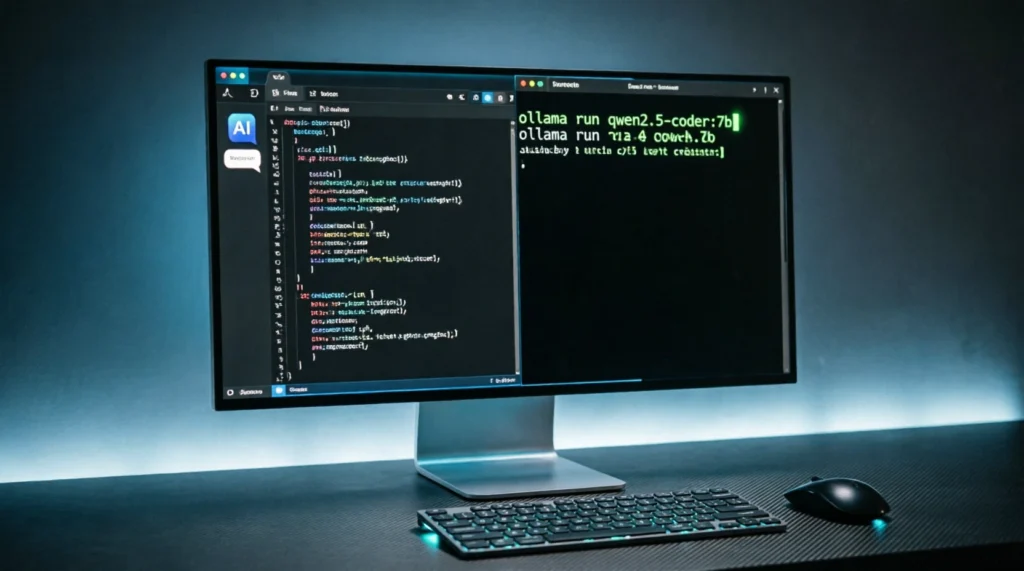
What you’ll see: An interactive terminal session with the >>> prompt. The model is responding to a coding question with syntax-highlighted Python code. You can see the streaming response as it generates line by line. The bottom shows system info like “Model: qwen2.5-coder:7b” and memory usage stats.
✅ Your local Qwen Coder is live! Time to use it for real work.
Step 3: Using Qwen Coder Effectively for Programming
Running the model is one thing. Getting great coding help from it is another. Here’s how to prompt like a pro.
Prompt Engineering Tips for Code
- Be Specific About Language and Framework
❌ “Write a function to sort data”
✅ “Write a TypeScript function to sort an array of user objects by last name, using lodash” - Provide Context When Debugging
Paste the error message, the relevant code snippet, and what you expected to happen. - Ask for Explanations, Not Just Code
“Explain how this regex works” or “Why does this approach cause a memory leak?” - Use Step-by-Step Requests for Complex Tasks
Break big asks into smaller prompts: first design the interface, then implement, then add tests.
Practical Examples by Use Case
🐍 Python: Data Processing
>>> Write a pandas function to load a CSV, filter rows where 'status' is 'active',
>>> and export the result to a new CSV. Include error handling for missing files.
🌐 JavaScript: Web Development
>>> Create a fetch wrapper in vanilla JS that automatically adds auth headers,
>>> handles retries on 429 errors, and returns parsed JSON or throws on failure.
🔬 Data Science: Analysis
>>> Generate a matplotlib script to plot a histogram of values from a numpy array,
>>> with custom binning, labels, and a title. Make it publication-ready.
🧪 Testing: Write Tests for Existing Code
>>> Here's my Python function. Write pytest unit tests covering edge cases:
>>> [paste your function]
Integrating with VS Code: The Game Changer
Typing in a terminal is fine for experiments. For daily coding, you want AI assistance right in your editor.
Option 1: Continue.dev (Recommended)
Continue is a free, open-source VS Code extension that connects to Ollama for both tab autocomplete and sidebar chat.
Setup:
- Install the “Continue” extension from the VS Code Marketplace
- Create or edit
~/.continue/config.json:
{
  "models": [
    {
      "title": "Qwen Coder Chat",
      "provider": "ollama",
      "model": "qwen2.5-coder:7b",
      "apiBase": "http://localhost:11434"
    }
  ],
  "tabAutocompleteModel": {
    "title": "Qwen Coder Autocomplete",
    "provider": "ollama",
    "model": "qwen2.5-coder:7b",
    "apiBase": "http://localhost:11434"
  },
  "tabAutocompleteOptions": {
    "debounceDelay": 500,
    "maxPromptTokens": 2048,
    "multilineCompletions": "always"
  }
}- Reload VS Code. Start typing code—you’ll see ghost-text suggestions. Press
Tabto accept,Escto dismiss.
Pro Tips:
- Use
@fileor@codebasein chat to give the model context from your project - Assign a smaller model (like
3b) to autocomplete for speed, and14bto chat for complex questions
📸 Screenshot 3: VS Code with Continue Extension
What you’ll see: VS Code editor with Python code open. The Continue sidebar is visible on the right showing a chat conversation with Qwen Coder. In the editor, you can see gray ghost-text autocomplete suggestions that appear as you type. The status bar at the bottom shows “Continue: qwen2.5-coder:7b” indicating the active model. The chat shows a conversation where the user asked for help refactoring a function, and the model provided a complete solution with explanations.
Option 2: Ollama Official Extension
The official Ollama VS Code extension offers simpler chat integration. Search “Ollama” in Extensions, install, and configure the model name in settings.
Option 3: Cursor Editor (Updated for v0.45+)
Cursor is a fork of VS Code with built-in AI. Here’s the current setup process:
- Download and install Cursor from cursor.com
- Open Settings (Cmd/Ctrl + Shift + P → “Cursor Settings”)
- Go to “Models” tab
- Click “Add Model” → Select “Ollama”
- Enter model name:
qwen2.5-coder:7b - Set API Base URL:
http://localhost:11434 - Toggle “Use for autocomplete” if desired
- Click “Save”
New in Cursor 0.45: You can now set different models for chat vs. autocomplete. I recommend using qwen2.5-coder:3b for autocomplete (faster) and qwen2.5-coder:14b for chat (smarter).
📸 Screenshot 4: Cursor Settings with Ollama Integration
What you’ll see: Cursor’s settings panel open to the “Models” section. You can see “Ollama” listed as a configured provider with qwen2.5-coder:7b selected. There’s a green status indicator showing “Connected” next to the localhost:11434 endpoint. The interface shows toggle switches for “Enable autocomplete” and “Enable chat” both turned on. Below, you can see model usage statistics showing tokens generated and average response time.
✅ You now have a private, offline AI pair programmer.
A Real Project: How I Built a Privacy-First Code Analysis Tool
Let me share something personal. Last month, I needed to analyze about 50 Python files from a legacy codebase to identify security vulnerabilities before a compliance audit. The catch? The code contained proprietary algorithms and couldn’t leave our secure network.
The challenge: I couldn’t use GitHub Copilot, Claude, or any cloud-based AI. But manually reviewing 50 files would take days.
The solution: I fired up Qwen2.5-Coder 14B locally via Ollama and built a simple Python script that:
- Parsed each file
- Sent suspicious patterns (like hardcoded credentials, SQL queries without parameterization, insecure crypto) to the local model
- Asked it to classify risk level and suggest fixes
Here’s the actual prompt I used:
Analyze this Python code for security vulnerabilities.
Check for: hardcoded secrets, SQL injection risks,
insecure random number generation, and unsafe deserialization.
Rate each finding as Low/Medium/High severity and provide
a fixed version. Return results as JSON.

Code:
{code_here}
The results: In about 2 hours (vs. an estimated 2-3 days manually), I identified 23 security issues, including:
- 3 hardcoded API keys in config files
- 7 instances of SQL string concatenation
- 2 uses of
eval()on user input - Multiple weak password hashing implementations
The model’s suggestions were about 85% accurate on the first pass—I caught a few false positives, but it found things I would have missed. More importantly, zero bytes of proprietary code left my machine.
This is the kind of real-world use case where local AI shines: sensitive work, unlimited iterations, and complete control.
Advanced Usage & Integrations
Once you’re comfortable with the basics, level up with these power-user techniques.
Accessing the Local API Directly
Ollama exposes a REST API at http://localhost:11434. Use it to build custom tools or integrate with other apps.
Example: Python Script
import requests

response = requests.post(
    "http://localhost:11434/api/generate",
    json={
        "model": "qwen2.5-coder:7b",
        "prompt": "Write a bash script to backup a directory",
        "stream": False
    }
)
print(response.json()["response"])
Open WebUI: A ChatGPT-Like Interface
Open WebUI is a self-hosted, beautiful frontend for Ollama.
Quick Docker Setup:
docker run -d -p 3000:3000 \
  -v open-webui:/app/backend/data \
  --name open-webui \
  --restart always \
  ghcr.io/open-webui/open-webui:main
Visit http://localhost:3000, create a local account, and start chatting with Qwen Coder in a familiar interface.
Creating Custom Modelfiles
Want to tweak behavior? Create a Modelfile:
FROM qwen2.5-coder:7b
PARAMETER temperature 0.2
PARAMETER num_ctx 4096
SYSTEM "You are a senior Python developer. Always include type hints and docstrings."
Build and run your custom model:
ollama create qwen-coder-pro -f Modelfile
ollama run qwen-coder-pro
GPU Acceleration Tips
- NVIDIA: Ensure CUDA is installed. Ollama auto-detects and offloads layers to GPU.
- Apple Silicon: Metal acceleration is enabled by default. No extra config needed.
- AMD: Install ROCm drivers and set
OLLAMA_GPU_LAYERS=35(adjust based on VRAM).
Check GPU usage with:
ollama ps # Shows loaded models and GPU layersRunning Multiple Models
Ollama can keep multiple models in memory. Pull what you need:
ollama pull qwen2.5-coder:3b   # Fast autocomplete
ollama pull qwen2.5-coder:14b  # Complex chat
Then reference them by name in your config or API calls.
Performance Optimization & Troubleshooting
Even the best setup hits snags. Here’s how to keep things running smoothly.
Common Errors & Fixes
| Error | Likely Cause | Solution |
|---|---|---|
connection refused | Ollama not running | Start ollama serve or launch the desktop app |
model not found | Typo in model name | Run ollama list to see exact tags |
| Slow responses | CPU-only, large model | Use 7b or smaller, or enable GPU offloading |
| Out of memory | Model too big for RAM | Switch to a smaller quantization or model size |
| Nonsensical code | High temperature | Lower temperature to 0.1-0.2 in Modelfile |
Speed Tips
- Reduce Context Length: For autocomplete, set
contextLengthto 2048 or less in your editor config. - Use Q4 Quantization: It’s the default and offers the best speed/quality balance.
- Preload Models: Run
ollama run qwen2.5-coder:7bonce to load it into memory before you start coding. - Close Other Apps: Free up RAM and CPU cycles for inference.
VRAM Management for Larger Models
If you’re running the 32B model:
- Use
OLLAMA_NUM_GPU_LAYERS=40to control how many layers run on GPU vs. CPU - Monitor usage with
nvidia-smi(NVIDIA) orhtop(CPU) - Consider swapping to a 14B model if you’re hitting limits
When to Restart Ollama
If performance degrades over time, a quick restart helps:
# macOS/Linux
ollama serve  # Stop with Ctrl+C, then restart

# Windows
# Right-click Ollama tray icon → Quit, then relaunch
Qwen Coder vs Other Local Models: An Honest Comparison
How does Qwen2.5-Coder stack up against alternatives? Here’s my real-world take after testing several:
| Model | Strengths | Weaknesses | Best For |
|---|---|---|---|
| Qwen2.5-Coder 7B | Strong code reasoning, multi-language support, great balance | Slightly slower than tiny models | Most developers |
| DeepSeek-Coder-V2 | Excellent long-context handling | MoE architecture can be unpredictable | Large codebases |
| Code Llama 7B | Very stable, well-documented | Older training data, weaker on newer frameworks | Legacy projects |
| StarCoder2 7B | Broad language coverage | Less fine-tuned for reasoning | Multi-language teams |
| Claude Code (Cloud) | Best-in-class complex reasoning | Requires API, costs money, privacy concerns | Non-sensitive, complex tasks |
The Verdict: For local, offline coding assistance, Qwen2.5-Coder 7B is currently the best all-rounder. It outperforms older models on modern benchmarks and handles real-world tasks with impressive reliability. If you have the hardware, the 32B version narrows the gap with cloud models like Claude—but for 90% of daily coding, the 7B model is more than enough.
Security, Privacy & Best Practices
Running AI locally is a huge privacy win, but stay smart:
🔒 Keep Ollama Updated: Security patches matter, even for local tools.
🔒 Don’t Hardcode Secrets: The model can’t “steal” your API keys, but if you paste them in prompts, they could appear in generated code.
🔒 Validate Generated Code: Always review and test AI suggestions. It’s an assistant, not an oracle.
🔒 Use Firewalls: If you expose Ollama’s API beyond localhost, add authentication.
Golden Rule: Treat AI-generated code like code from a junior developer—helpful, but always review before merging.
Conclusion & Next Steps
You did it! You now have a powerful, private, offline AI coding assistant running entirely on your machine. No subscriptions. No data leaks. No rate limits.
Quick Recap:
- ✅ Installed Ollama in minutes
- ✅ Pulled Qwen2.5-Coder (starting with the versatile 7B model)
- ✅ Used it for real coding tasks via terminal and VS Code
- ✅ Learned how to optimize and troubleshoot
Your Next Steps:
- Try this command right now:
ollama run qwen2.5-coder:7b "Write a one-line Python function to reverse a string"- Install Continue.dev in VS Code for seamless autocomplete.
- Experiment with prompts: Ask it to explain a complex algorithm, refactor messy code, or generate tests.
Run AI Models & Deploy SaaS Apps on Your Own VPS
Host Qwen Coder, spin up AI agents, or launch your SaaS — with full root access and no per-call API billing eating into your margins.
Join the Community
- Ollama Discord for troubleshooting
- Qwen GitHub for model updates
- Continue.dev Docs for editor integration tips
What model size are you running? Drop a comment below—I’d love to hear how it’s working for your workflow. And if this guide saved you hours of setup time, share it with a fellow developer who’s tired of API bills.
Happy coding—privately, powerfully, and on your own terms. 🚀
FAQ: Your Qwen Coder + Ollama Questions, Answered
Q: Do I need an internet connection after downloading the model?
A: No! Once pulled, Qwen Coder runs 100% offline. Perfect for air-gapped environments or travel.
Q: How long does inference take on a CPU?
A: For the 7B model on a modern CPU: 2-8 seconds per completion. GPU (even mid-range) cuts this to sub-second.
Q: Can I fine-tune Qwen Coder on my own codebase?
A: Yes, but it’s advanced. You’d export the model, fine-tune with tools like Unsloth or Axolotl, then re-import via Ollama. Start with prompt engineering first!
Q: What if I run out of RAM?
A: Switch to a smaller model (3b or 1.5b), or use Q4 quantization. Ollama will also swap to disk if needed (slower, but works).
Q: Does Qwen Coder support fill-in-the-middle (FIM) for autocomplete?
A: Yes! The 7B+ models support FIM prompting, which Continue.dev leverages for context-aware tab completions.
Q: How do I update to a newer Qwen Coder version?
A: Run ollama pull qwen2.5-coder:7b again. Ollama checks for updates and re-downloads if the tag has changed.
Q: Can I use this commercially?
A: Yes! Qwen2.5-Coder is Apache 2.0 licensed. Just review Alibaba’s terms for your use case.
Looking for more local AI guides? Check out our posts on [best Ollama models for developers] and [how to use local LLMs with VS Code] for deeper dives.