
In today’s hyper-connected world, WhatsApp has become the primary medium for daily communication. For millions of Malayalis, both within Kerala and across the global diaspora, the ability to converse in their mother tongue is not just a matter of convenience—it is a way to preserve cultural identity, ensure clarity, and make conversations with elders more inclusive.
If you have been searching for a clear, step-by-step guide on how to type Malayalam in WhatsApp, you have come to the right place. Whether you are using an Android smartphone, an iPhone, or WhatsApp Web on your computer, this comprehensive guide will walk you through every method, tool, and pro tip you need to start typing in Malayalam effortlessly.
Why You Should Start Typing in Malayalam on WhatsApp
Before diving into the technical setup, it is worth understanding why making this small digital shift is highly beneficial:
- Emotional Connection: Conversations in one’s native language carry nuances, warmth, and cultural context that English or Manglish (Malayalam written in English script) often miss.
- Inclusivity for Elders: Many parents and grandparents are comfortable reading Malayalam script but struggle with English. Typing in Malayalam bridges the generational digital divide.
- Zero Ambiguity: Manglish can sometimes be misinterpreted due to varying spelling conventions. Standard Malayalam script ensures your message is read exactly as intended.
- Professional and Formal Communication: When communicating with local businesses, community groups, or official contacts in Kerala, using the native script projects respect and professionalism.
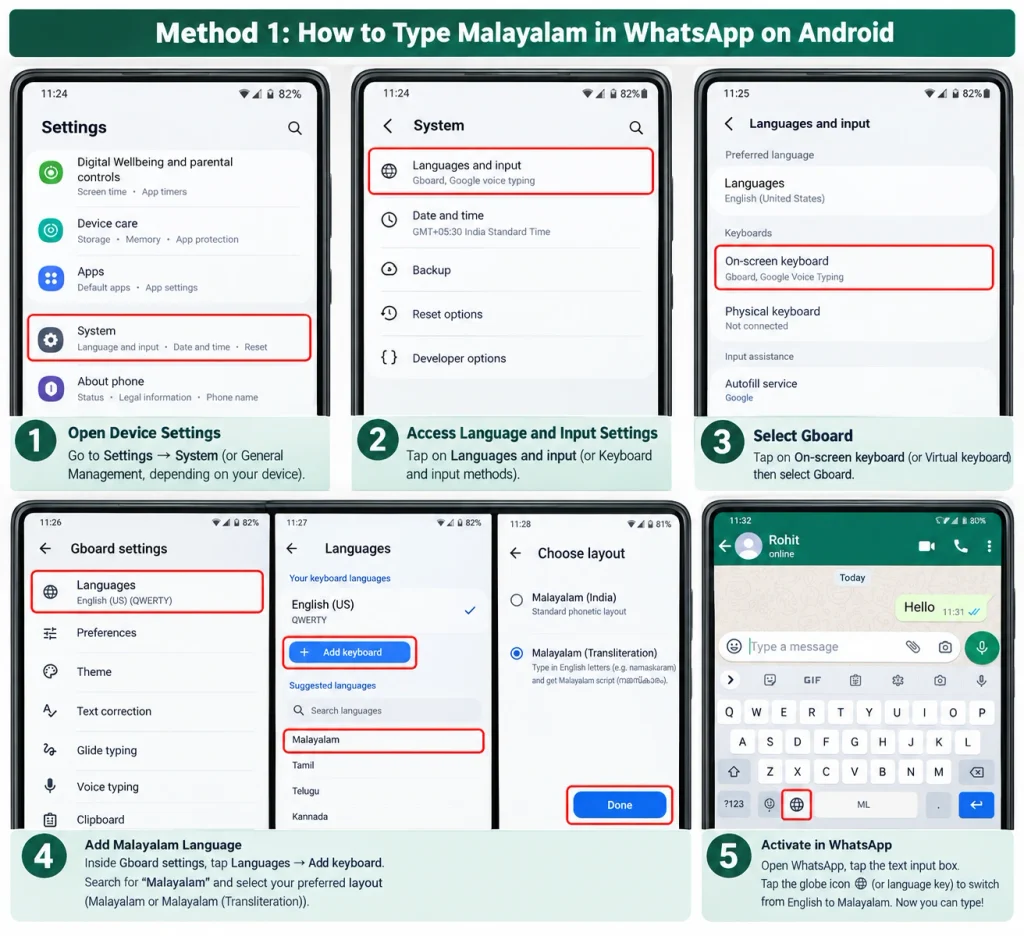
Method 1: How to Type Malayalam in WhatsApp on Android
Android offers the most flexible and user-friendly environment for regional language typing. The most reliable and widely used method is through Gboard (Google Keyboard), which comes pre-installed on most Android devices.
Step-by-Step Setup Using Gboard
Step 1: Open Your Device Settings Navigate to the “Settings” app on your Android phone. Scroll down and tap on “System” or “General Management,” depending on your device manufacturer (Samsung, Xiaomi, OnePlus, etc.).
Step 2: Access Language and Input Settings Look for “Languages & input” or “Keyboard and input methods.” Tap on “On-screen keyboard” or “Virtual keyboard,” and then select “Gboard.”
Step 3: Add the Malayalam Language Inside the Gboard settings, tap on “Languages.” You will see your current default language (usually English). Tap the “Add keyboard” button at the bottom. Scroll through the list or use the search bar to find “Malayalam.”
Step 4: Choose Your Preferred Layout Gboard offers multiple Malayalam layouts. The most popular are:
- Malayalam (India): The standard phonetic layout.
- Malayalam (Transliteration): This allows you to type in English letters (e.g., “namaskaram”), and the keyboard automatically converts it to Malayalam script (നമസ്കാരം) as you type. This is highly recommended for beginners.
Select your preferred layout and tap “Done.”
Step 5: Activate in WhatsApp Open WhatsApp and start a chat. Tap the text input box to bring up the keyboard. Tap the globe icon 🌐 or the language key on the keyboard to switch from English to Malayalam. You are now ready to type.
Alternative Android Option: Microsoft SwiftKey
If you prefer Microsoft SwiftKey, the process is similar. Open the SwiftKey app, go to “Languages,” tap “Add,” search for Malayalam, and enable both the standard and transliteration layouts. SwiftKey is particularly praised for its highly accurate predictive text and autocorrect features in regional languages.
Method 2: How to Type Malayalam in WhatsApp on iPhone (iOS)
Apple’s iOS has made significant strides in supporting regional languages. Adding a Malayalam keyboard to your iPhone is a straightforward process that does not require any third-party downloads, though third-party options are available for enhanced features.
Step-by-Step Setup Using Native iOS Settings
Step 1: Open iPhone Settings Unlock your iPhone and open the “Settings” app.
Step 2: Navigate to Keyboard Settings Tap on “General,” then scroll down and select “Keyboard.” Tap on “Keyboards” at the top of the screen.
Step 3: Add a New Keyboard Tap on “Add New Keyboard…” You will see a long alphabetical list of languages. Scroll down to “M” and select “Malayalam.”
Step 4: Select the Input Style iOS provides a few variations. The standard “Malayalam” keyboard is a phonetic layout. If you want transliteration (typing English to get Malayalam), you may need to rely on a third-party keyboard, as the native iOS Malayalam keyboard is primarily phonetic.
Step 5: Enable Full Access (If Using Third-Party) If you choose to download Gboard for iOS from the App Store for better transliteration, you must go back to Settings > General > Keyboard > Keyboards > Gboard, and toggle on “Allow Full Access.” This is required for the keyboard to offer cloud-based prediction and transliteration.
Step 6: Start Typing in WhatsApp Open WhatsApp, tap the chat box, and press and hold the globe icon 🌐 at the bottom left of the screen. Select “Malayalam” from the pop-up menu.
Method 3: How to Type Malayalam in WhatsApp Web and Desktop
Typing on a smartphone is convenient, but many users prefer the speed of a physical keyboard when using WhatsApp Web or the WhatsApp Desktop application. Here is how to set up Malayalam typing on your computer.
For Windows Users
Option A: Built-in Windows Malayalam Keyboard
- Click the Start menu and go to “Settings” (the gear icon).
- Select “Time & Language,” then click on “Language & region.”
- Click “Add a language,” search for “Malayalam,” and install it.
- Once installed, you can switch to the Malayalam keyboard anytime by pressing the
Windows Key + Spacebar.
Option B: Using Google Input Tools (Chrome Extension) If you prefer transliteration (typing “sugamano” to get “സുഖമാണോ”), the best method is using a browser extension.
- Open the Google Chrome Web Store.
- Search for “Google Input Tools” or reliable alternatives like “Quillpad.”
- Add the extension to Chrome.
- Configure the extension to use “Malayalam – Transliteration.”
- Open WhatsApp Web. Click the extension icon and activate Malayalam typing. As you type in English, it will seamlessly convert to Malayalam script in the WhatsApp chat box.
For Mac Users
- Click the Apple menu in the top-left corner and select “System Settings” (or “System Preferences” on older macOS versions).
- Go to “Keyboard” and find the “Input Sources” tab.
- Click the “+” button to add a new input source.
- Search for “Malayalam” and select “Malayalam – InScript” or “Malayalam – Transliteration” (if available via third-party tools like “Swanalekha”).
- Add it to your list. You can now switch between English and Malayalam by pressing
Control + Spacebaror by clicking the input menu in the top menu bar.
Method 4: The Manglish to Malayalam Conversion Trick
If you are not ready to learn a new keyboard layout and prefer typing in English letters (Manglish), you can use online transliteration tools to convert your text before sending it on WhatsApp.
How to do it:
- Open your mobile browser or computer browser.
- Visit a reliable transliteration website such as Quillpad.in or Type Malayalam.
- Type your message in English (e.g., “Nalla varthamanangal undo?”).
- The tool will instantly display the Malayalam equivalent (നല്ല വാർത്തമാനങ്ങൾ ഉണ്ടോ?).
- Tap “Copy” and paste the text directly into your WhatsApp chat.
While this method is slightly slower than using a dedicated keyboard, it is an excellent fallback for users who only need to send occasional Malayalam messages and do not want to change their default keyboard settings.
Pro Tips for Faster and Smarter Malayalam Typing
Once you know how to type Malayalam in WhatsApp, the next goal is to improve your speed and accuracy. Here are some expert tips to elevate your typing game.
1. Master Voice Typing (Dictation)
Typing on a glass screen can be tedious. Both Gboard and iOS keyboards support highly accurate Malayalam voice typing.
- On Android: Tap the microphone icon on your Gboard keyboard. Ensure your phone’s language settings include Malayalam. Speak clearly, and Google will transcribe your speech into Malayalam text with remarkable accuracy.
- On iOS: Tap the microphone icon on the bottom right of the iOS keyboard. Speak your message, and Apple’s dictation engine will convert it to text.
2. Learn the “Chillu” Letters
Malayalam has unique half-letters known as “Chillu” (ൽ, ൽ, ൻ, ർ, ൾ). On a standard phonetic keyboard, these are often accessed by long-pressing the corresponding base letter. For example, long-pressing “ല” (la) will give you “ൽ” (l). Learning these shortcuts makes your typing look more authentic and grammatically correct.
3. Enable Swipe Typing (Glide Typing)
If you are using Gboard or SwiftKey, enable “Glide typing” in the keyboard settings. This allows you to slide your finger across the Malayalam letters to form words without lifting your finger. The keyboard’s AI is smart enough to predict the intended Malayalam word, drastically increasing your typing speed.
4. Customize Your Autocorrect and Personal Dictionary
If the keyboard keeps correcting a specific Malayalam word incorrectly (like a family member’s name or a local place name), add it to your personal dictionary. In Gboard, go to Settings > Dictionary > Personal dictionary > Malayalam, and add the word. The keyboard will now prioritize your custom spelling.
Troubleshooting Common Malayalam Typing Issues
Even with the correct setup, you might occasionally encounter minor glitches. Here is how to resolve the most common problems.
Issue 1: The Text Appears as Boxes or Question Marks (□□□)
- Cause: This is a font rendering issue, usually occurring on very old devices or when sending text to a device that lacks Malayalam font support.
- Solution: Ensure your device’s operating system is updated. If the recipient sees boxes, advise them to update their phone’s software or install a Malayalam font pack (rarely needed on modern smartphones).
Issue 2: The Keyboard Keeps Switching Back to English
- Cause: Accidental taps on the globe icon or aggressive autocorrect settings.
- Solution: In your keyboard settings, look for an option to “Show language switch key” and ensure it is stable. You can also set Malayalam as the primary default language in your phone’s main language settings if you use it more than English.
Issue 3: Transliteration is Not Working
- Cause: You may have selected the “InScript” or standard phonetic layout instead of the “Transliteration” layout.
- Solution: Go back to your keyboard settings, remove the current Malayalam layout, and re-add it, making sure to explicitly select the “Transliteration” or “Phonetic” variant.
Conclusion
Learning how to type Malayalam in WhatsApp is a small technical adjustment that yields massive personal and cultural rewards. It transforms your daily chats from mundane text exchanges into meaningful, culturally rich conversations.
Whether you choose the seamless transliteration of Gboard on Android, the native integration on iOS, or the efficiency of WhatsApp Web on your desktop, the tools are readily available and free to use. Start by setting up your preferred keyboard today, practice with a close friend or family member, and soon, typing in Malayalam will become as natural and automatic as speaking it.
Embrace your mother tongue in the digital space. Your next WhatsApp message is waiting to be written in beautiful Malayalam script.
Frequently Asked Questions (FAQs)
Q1: Can I type Malayalam in WhatsApp without installing any new apps? Yes. Both Android (via Gboard, which is pre-installed) and iOS (via the native keyboard settings) allow you to add the Malayalam language without downloading any third-party applications from the app store.
Q2: What is the best keyboard for typing Malayalam on a smartphone? Gboard (Google Keyboard) is widely considered the best option due to its highly accurate transliteration feature, excellent voice typing support, and seamless glide-typing capabilities. Microsoft SwiftKey is a very close second, especially for its predictive text algorithms.
Q3: Will the person I am messaging need a special font to read my Malayalam messages? No. Modern smartphones (both Android and iOS) and computers have built-in Unicode support for Malayalam. As long as the recipient’s device is relatively recent (manufactured in the last decade), the Malayalam text will render perfectly without any additional fonts or apps.
Q4: Can I use voice-to-text for Malayalam in WhatsApp? Absolutely. Both Google’s voice typing (on Android and iOS via Gboard) and Apple’s native dictation support Malayalam. Just ensure that Malayalam is added to your device’s language list, tap the microphone icon on your keyboard, and start speaking.
Q5: How do I switch back to English after typing in Malayalam? You can switch back instantly by tapping the globe icon 🌐 or the language abbreviation (e.g., “EN” or “ML”) located on the bottom left or spacebar of your virtual keyboard. This toggles between your installed languages.