Canva Magic Layers: The Game-Changing Feature That’s Making Flat Designs Editable Again
Let me tell you about a moment every designer knows all too well.
You’re working on a project, and someone sends you a beautiful design. It looks amazing. The colors are perfect, the composition is on point, and it’s exactly what you need. There’s just one tiny problem: it’s flattened. It’s a single image file, and suddenly, you’re stuck.
Need to change the text? Too bad. Want to move that element three pixels to the left? Forget it. Thinking about swapping out the background? You might as well start from scratch.
For years, this has been the nightmare scenario for designers, marketers, and content creators. You’d receive a JPEG or PNG, and suddenly, all that creative work became a digital statue—beautiful to look at, but completely untouchable.
But what if I told you that’s all changed?
Enter Canva Magic Layers, a feature so revolutionary that it’s making seasoned designers do a double-take. It’s taking those “dead” flattened images and breathing new life into them, separating them into fully editable components that you can actually work with.
If you’ve ever wished you could go back in time and ask someone to send you the original layered file instead of a flattened image, keep reading. Your wish just came true.
What Exactly Is Magic Layers?
Let’s break this down without the tech jargon.
Imagine you have a photograph of a layered cake. To the naked eye, it looks like one complete dessert. But if you could magically separate each layer—the sponge, the frosting, the fruit filling, the decorative toppings—you could rearrange them, swap flavors, or remove elements entirely.
That’s essentially what Magic Layers does for your designs.
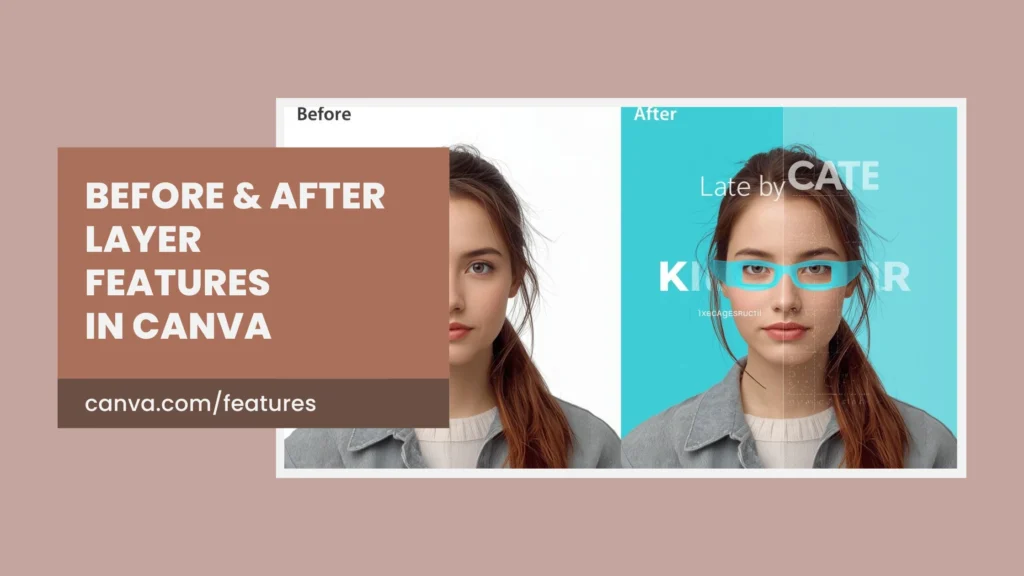
When you upload a flattened image (whether it’s a JPEG, PNG, or even an AI-generated design), Magic Layers uses advanced artificial intelligence to analyze the image and identify individual elements. It then separates these elements into distinct, editable layers that you can manipulate independently.
Think about that for a second. An image that was previously just pixels on a screen suddenly becomes a collection of movable, resizable, recolorable objects. The text becomes editable text. The background becomes a separate element you can remove or replace. That product in the middle? You can move it, resize it, or swap it out entirely.
It’s like having a digital time machine that can reverse-engineer a flattened design back into its component parts.
The Problem Magic Layers Solves
To truly appreciate what Magic Layers does, we need to understand the problem it’s solving. And trust me, it’s a big one.
The Flattened Design Dilemma
In the design world, there are two types of files: layered files and flattened files.
Layered files (like PSD, AI, or Canva’s native format) are like digital onions. They have multiple layers stacked on top of each other. You can peel back each layer, edit it, move it, or remove it without affecting the others. These files are a designer’s dream because they offer complete flexibility.
Flattened files (like JPEG or PNG), on the other hand, are like a baked cake. All the ingredients have been mixed together and cooked into a single entity. You can’t separate the eggs from the flour anymore. Everything is merged into one inseparable image.
Here’s where things get frustrating:
Most people don’t save or share layered files. They export their designs as JPEGs or PNGs because these formats are universally compatible, have smaller file sizes, and look great on screens and in print. But once that design is flattened, it’s essentially locked forever.
Real-World Scenarios Where This Hurts
Let me paint you some pictures:
Scenario 1: You’re a social media manager. Your designer created a beautiful Instagram post last month, and now your boss wants to use the same design but with different text and colors. The problem? The designer only sent you the JPEG. You either need to track down the original files (good luck if they’ve moved on) or recreate the entire design from scratch.
Scenario 2: You’re running an e-commerce store. You have a gorgeous product photo with your item on a beautiful background. Now you need that same product on a white background for your website, on a lifestyle background for Instagram, and on a colored background for an ad campaign. Without the original layered file, you’re looking at three separate photoshoots or some very time-consuming Photoshop work.
Scenario 3: You’re a small business owner who hired a freelancer to create your logo and branding materials. They sent you the final files, but six months later, you need to make a small adjustment. The freelancer is unavailable, and you don’t have the editable files. You’re stuck.
Scenario 4: You’re working with AI-generated images. You love the composition, but that one element in the corner isn’t quite right. With traditional AI image generators, your only option is to regenerate the entire image and hope for a better result.
Sound familiar? If you’ve worked with digital designs for any length of time, you’ve probably encountered at least one of these scenarios. They’re frustrating, time-consuming, and often expensive to resolve.
Magic Layers changes all of that.
How Magic Layers Works (Without the Technical Overwhelm)
Now, I know what some of you are thinking: “This sounds like magic, but how does it actually work?”
Fair question. Let me explain it in a way that doesn’t require a computer science degree.
When you upload an image to Canva and activate Magic Layers, here’s what happens behind the scenes:
Step 1: AI Analysis
The system scans your image using sophisticated machine learning algorithms. It’s looking for visual cues that indicate different elements—edges, colors, textures, shadows, and depth. It’s essentially asking: “Where does one object end and another begin?”
Step 2: Element Detection
The AI identifies distinct elements within your image. Is that text? A product? A person? A background? A decorative element? It categorizes what it sees, similar to how your brain instantly recognizes different objects in a photograph.
Step 3: Separation
This is where the magic happens. The system creates separate layers for each detected element. It’s not just cutting things out randomly—it’s intelligently reconstructing what might be hidden behind other elements. If text is overlapping a background, Magic Layers figures out what the background looks like underneath and recreates it.
Step 4: Editable Conversion
Each separated element becomes an editable object in Canva. Text becomes actual text you can edit. Images become movable, resizable elements. Backgrounds become separate layers you can modify or remove.
Step 5: User Control
Now it’s your turn. You can move elements around, resize them, recolor them, replace them, or delete them entirely. You have complete creative control over what was previously a static image.
The entire process happens in seconds, not hours. What used to require expert Photoshop skills and significant time investment now happens with a single click.
The Key Features That Make Magic Layers Special
Let’s dive into the specific capabilities that make this feature so powerful. Based on what we’re seeing, here are the core features:
1. Move, Resize, Recolor, or Replace Each Layer
This is the bread and butter of Magic Layers. Once your image is separated into layers, each element becomes fully manipulatable.
Moving Elements: That product shot is slightly off-center? Drag it wherever you want. The text is blocking an important visual element? Move it. You have complete freedom to rearrange the composition without affecting other elements.
Resizing: Need that logo to be bigger? That background element to be smaller? You can resize individual layers independently, maintaining the quality and integrity of each element.
Recoloring: This is huge for brand consistency. Let’s say you have a design with blue accents, but your brand colors are green. With Magic Layers, you can recolor individual elements to match your brand guidelines without affecting the rest of the design.
Replacing: This is where things get really powerful. Don’t like that particular graphic element? Swap it out for something else. Need to update a product image? Replace it while keeping everything else intact. You’re no longer locked into the original creative decisions.
2. Easily Change or Remove the Background
Background manipulation has always been one of the most time-consuming tasks in design. Whether you’re removing a background entirely or swapping it for something else, it typically requires careful selection tools, masking, and a steady hand.
Magic Layers simplifies this dramatically. Since the background is automatically detected and separated into its own layer, you can:
- Remove it entirely with a single click
- Replace it with a solid color, gradient, or another image
- Modify it without affecting the foreground elements
- Create multiple versions of the same design with different backgrounds
This is particularly valuable for e-commerce, product photography, and marketing materials where you need the same product showcased in different contexts.
3. Adjust Without Regenerating
This feature specifically addresses a pain point for anyone working with AI-generated images.
Traditional AI image generators work on an all-or-nothing basis. You provide a prompt, the AI generates an image, and if you don’t like something about it, you have to regenerate the entire thing. You might get a better result, or you might lose the elements you loved while fixing the ones you didn’t.
It’s like ordering a pizza, taking one bite, deciding you don’t like the peppers, and having to throw away the entire pizza and order a new one. Hope you like the new one better!
Magic Layers changes this dynamic completely. If you love an AI-generated image but want to adjust specific elements, you can:
- Separate the image into layers
- Modify just the elements you want to change
- Keep everything else exactly as it was
No regeneration needed. No gambling on whether the next version will be better or worse. You maintain complete control while preserving what works.
4. Works with Flattened AND AI-Generated Designs
One of the most impressive aspects of Magic Layers is its versatility. It doesn’t just work with one type of image—it handles:
- Traditional flattened designs (JPEGs, PNGs exported from any design software)
- AI-generated images (from Canva’s AI tools or other generators)
- Screenshots (yes, even screenshots can be separated into layers)
- Stock photos with multiple elements
- Complex compositions with text, graphics, and photography
This versatility means you’re not limited to specific file types or sources. Any image can potentially become an editable, layered design.
Real-World Use Cases: Where Magic Layers Shines
Features are great, but let’s talk about how this actually helps you in real life. Here are some practical scenarios where Magic Layers transforms the way you work:
Social Media Content Creation
You’re a social media manager juggling multiple platforms, brands, and campaigns. Your designer created a beautiful template last quarter, but now you need to:
- Update the text for a new promotion
- Change the colors to match a seasonal campaign
- Swap out product images
- Create variations for different platforms
Without Magic Layers, you’d need to find the original files or recreate everything from scratch. With Magic Layers, you upload the flattened image, separate the layers, and make your adjustments in minutes.
Time saved: Hours per design
Stress level: Dramatically reduced
E-Commerce Product Photography
You sell products online, and you need those products to look amazing across multiple touchpoints:
- White background for your website
- Lifestyle background for Instagram
- Branded background for email marketing
- Seasonal backgrounds for holiday promotions
Traditionally, this would require either multiple photoshoots or extensive photo editing. With Magic Layers, you take one great product photo, separate the product from the background, and place it on as many different backgrounds as you need.
Cost savings: No additional photoshoots
Consistency: Same product, perfect every time
Small Business Branding
You’re a small business owner who invested in professional branding. Your designer created beautiful materials, but now you need to make updates:
- Change your tagline
- Update pricing information
- Add new products to existing templates
- Create variations for different audiences
You don’t have the design skills to recreate these from scratch, and you can’t always reach your designer for small tweaks. Magic Layers gives you the power to make these adjustments yourself while maintaining professional quality.
Empowerment: You’re no longer dependent on others for small changes
Speed: Updates happen immediately, not in days or weeks
Marketing and Advertising
You’re running ad campaigns and need to test different variations:
- Different headlines
- Different calls-to-action
- Different product placements
- Different color schemes
A/B testing requires multiple versions of the same basic design. Magic Layers makes it easy to create these variations quickly without starting from zero each time.
Testing capability: More variations, faster
Efficiency: Reuse what works, adjust what doesn’t
Content Repurposing
You have a great piece of content—an infographic, a quote graphic, a product announcement. Now you want to repurpose it across different channels:
- Instagram post to Instagram Story
- Facebook ad to LinkedIn post
- Blog graphic to email header
- Print ad to digital banner
Each platform has different dimensions and requirements. Magic Layers lets you adjust and reorganize elements to fit each format perfectly.
Reach: Maximize your content across platforms
Consistency: Maintain brand identity everywhere
The Benefits: Why This Matters
Let’s step back and talk about the bigger picture. Why should you care about Magic Layers? What difference does it really make?
1. Democratization of Design
For too long, advanced design capabilities have been gatekept behind expensive software and years of training. If you didn’t know Photoshop, you couldn’t separate layers from a flattened image. Period.
Magic Levels the playing field. You don’t need to be a design expert to manipulate complex images. The AI does the heavy lifting, and you get to focus on the creative decisions.
This democratization means:
- Small businesses can compete with bigger brands
- Non-designers can create professional-quality work
- Everyone can iterate and experiment without fear
2. Time Is Money (And Sanity)
Let’s do some quick math. Say you spend an hour recreating a design because you don’t have the layered files. That’s an hour you’re not spending on strategy, on creating new content, or on actually growing your business.
Multiply that by:
- The number of designs you work with monthly
- The number of team members doing this work
- The hourly rate of the people doing this work
The numbers add up quickly. Magic Layers isn’t just a nice-to-have feature; it’s a productivity multiplier that pays for itself many times over.
3. Creative Freedom
There’s something psychologically liberating about knowing you can change anything. When you’re working with a flattened image, you’re constantly thinking: “I wish I could just move that” or “If only I could change this color.”
Those constraints limit creativity. You start designing around limitations rather than possibilities.
Magic Layers removes those constraints. Suddenly, everything is possible. Want to try a completely different layout? Go for it. Thinking about testing a new color scheme? Why not. This freedom leads to better, more innovative work.
4. Reduced Dependency
How many times have you been stuck waiting for someone else?
- Waiting for a designer to send updated files
- Waiting for a freelancer to make a small change
- Waiting for approval because you can’t make the adjustment yourself
These dependencies create bottlenecks. They slow down your workflow and create frustration. Magic Layers gives you independence. You can make the changes yourself, right now, without waiting for anyone.
5. Sustainability of Design Assets
Design assets are investments. You pay for them (in money or time), and you expect to use them for a while. But flattened designs have a limited lifespan. As soon as you need to make a change, they become liabilities rather than assets.
Magic Layers extends the life of your design assets. That template you created six months ago? Still useful. That promotional graphic from last year? Can be updated and reused. Your design library becomes a living, evolving resource rather than a collection of static files.
Tips for Getting the Most Out of Magic Layers
Like any powerful tool, Magic Layers works best when you know how to use it effectively. Here are some tips to maximize your results:
1. Start with High-Quality Images
The better your source image, the better Magic Layers can separate the elements. High-resolution images with clear distinctions between elements work best. Blurry, low-quality, or overly complex images might not separate as cleanly.
Pro tip: If you’re creating designs that you might want to edit later, save them in the highest quality possible before flattening.
2. Understand the Limitations
Magic Layers is impressive, but it’s not magic (despite the name). It works best when:
- Elements have clear boundaries
- There’s good contrast between different components
- The image isn’t overly cluttered
Very complex images with many overlapping elements might not separate perfectly. In these cases, you might need to do some manual adjustments after the initial separation.
3. Use It as a Starting Point
Think of Magic Layers as giving you a 90% solution instantly. You’ll get most of the way there automatically, but be prepared to make minor adjustments:
- Fine-tune the positioning
- Adjust colors to your exact specifications
- Clean up any edges that didn’t separate perfectly
This is still infinitely faster than starting from zero.
4. Experiment Fearlessly
One of the beautiful things about Magic Layers is that it’s non-destructive. You’re not ruining the original image by experimenting with it. Try different:
- Layouts
- Color combinations
- Element arrangements
- Background swaps
The more you experiment, the more you’ll discover what’s possible.
5. Combine with Other Canva Features
Magic Layers doesn’t exist in isolation. Combine it with other Canva features for even more powerful results:
- Use Magic Edit to modify specific elements after separation
- Apply Background Remover for additional refinement
- Leverage Brand Kit to quickly apply your brand colors to separated elements
- Use Templates to place your separated elements into new contexts
The whole is greater than the sum of its parts.
The Bigger Picture: Where Design Is Heading
Magic Layers isn’t just a cool feature; it’s a glimpse into the future of design. We’re moving toward a world where:
AI handles the technical heavy lifting, freeing humans to focus on creativity and strategy. You don’t need to know how to use complex selection tools when AI can do it instantly.
Barriers between formats are dissolving. The distinction between “editable” and “flattened” is becoming less relevant. Everything can become editable.
Iteration is instantaneous. The gap between idea and execution is shrinking. You can try something, see it, adjust it, and try again in real-time.
Design is becoming more accessible. You don’t need years of training to create professional-quality work. The tools are getting smarter, making advanced capabilities available to everyone.
This is exciting, but it also means the role of designers is evolving. It’s less about technical execution and more about creative vision, strategy, and storytelling. The tools handle the “how,” and humans focus on the “what” and “why.”
Addressing the Elephant in the Room
I can hear some of you thinking: “Wait, if AI can separate flattened images, does that mean designers’ work can be easily stolen or modified without permission?”
That’s a valid concern, and it deserves addressing.
First, let’s be clear: Magic Layers is a tool, and like any tool, it can be used ethically or unethically. Canva has terms of service that govern how their platform can be used, and those include respecting intellectual property rights.
Second, the existence of this tool doesn’t change the fundamental ethics of design work. If you didn’t have the right to modify a design before, you don’t have the right to modify it now just because the technology makes it easier.
Third, this technology actually protects designers in some ways. It allows designers to share flattened versions of their work with clients, knowing that if changes are needed, they can be made without requiring the original layered files. This protects the designer’s working files while still giving clients flexibility.
The key is using these tools responsibly and respecting the work and rights of others.
Getting Started with Magic Layers
Ready to try Magic Layers for yourself? Here’s how to get started:
- Upload your image to Canva. This can be a JPEG, PNG, or any flattened image format.
- Select the image and look for the Magic Layers option (usually in the editing toolbar).
- Click to separate the layers. The AI will analyze your image and separate it into editable components.
- Review the results. Check that the elements have been separated correctly.
- Start editing. Move, resize, recolor, or replace elements as needed.
- Save your work. Once you’re happy with your edits, save your design.
It really is that simple. What used to take hours now takes seconds.
Final Thoughts: Embracing the Change
Change can be uncomfortable, especially when it comes to tools and workflows we’ve relied on for years. But Magic Layers represents the kind of change that makes everyone’s life better.
For designers, it eliminates tedious technical work and lets you focus on creativity.
For non-designers, it makes professional-quality design accessible and achievable.
For businesses, it saves time, reduces costs, and increases agility.
For everyone, it removes barriers and opens up new possibilities.
The question isn’t whether this technology will change how we work with images—it already is. The question is whether you’ll embrace it and use it to create better work, faster.
My advice? Dive in. Experiment. See what’s possible when you’re no longer limited by flattened files and technical constraints. Your future self (and your future projects) will thank you.
Because in the end, design isn’t about the tools you use or the technical skills you possess. It’s about the ideas you bring to life and the impact you create. Magic Layers is just another way to help you do that better, faster, and more creatively than ever before.
Welcome to the future of design. It’s editable, it’s accessible, and it’s waiting for you to make your mark.
Have you tried Magic Layers yet? What kinds of projects are you excited to use it for? The possibilities are endless, and I can’t wait to see what you create. Read more tech blogpost