
If you have ever typed your website’s URL into Google PageSpeed Insights and watched the score come back somewhere in the 50s or 60s, you already know the feeling. It is a mix of frustration and confusion. You did not write bad code. You did not do anything obviously wrong. You just installed WordPress, picked a nice theme, added a few plugins, and started writing content. And yet, somehow, your site loads like it is stuck in traffic.
Here is the good news: you do not need to be a developer to fix this. You do not need to learn what “render-blocking JavaScript” means at a technical level, and you definitely do not need to hire someone to dig through your site’s code. In the last year, hosting providers have started building AI-powered performance tools directly into their dashboards, and they can do in a few clicks what used to take hours of manual plugin configuration.
This tutorial walks you through exactly how one of these tools works, what it actually changes on your site, and how you can use it yourself — even if the word “cache” makes your eyes glaze over.
💡 Quick note: The example in this post uses a site hosted on Hostinger, whose AI Troubleshooter tool is built directly into the hosting dashboard at no extra cost. If you are still shopping for a host or thinking about switching, you can check current plans here: Get Hostinger → (affiliate link — see our Affiliate Disclosure for details)
Why WordPress Sites Get Slow in the First Place
Before jumping into the fix, it helps to understand why this happens. WordPress itself is not slow. But a typical WordPress site accumulates small inefficiencies over time, and each one adds a little weight:
- Unoptimized images. A photo straight from your phone or a stock photo site can be several megabytes. Multiply that by ten images on a page, and your visitor is downloading a small movie just to read a blog post.
- Render-blocking scripts. Plugins often load their JavaScript and CSS files in a way that forces the browser to stop and wait before it can show anything on screen.
- No caching. Without caching, your server rebuilds the entire page from scratch every single time someone visits, even if nothing has changed since the last visitor.
- Bloated frontend code. Over time, plugins add extra tags, emoji scripts, query strings, and other small pieces of code that pile up invisibly.
- Unoptimized databases. Every post revision, spam comment, and transient option gets stored in your database. After a while, even simple queries take longer than they should.
None of these problems are dramatic on their own. But together, they are usually the reason a fresh WordPress install feels fast while the same site, a year later, feels sluggish.
Enter AI-Powered Site Troubleshooting
Traditionally, fixing all of the issues above meant installing a caching plugin, configuring minification settings, manually compressing images, and possibly digging into your database with a cleanup plugin. Each step required some trial and error, and getting it wrong could break your site’s layout.
Newer hosting-integrated tools remove almost all of that guesswork. Instead of you deciding which settings to toggle, the tool scans your live site, identifies exactly what is slowing it down, and applies the fixes automatically. Think of it as having a performance specialist look at your site and make the adjustments for you, rather than handing you a manual and wishing you luck.
Let’s look at what this actually looks like in practice, using a real before-and-after example.
A Real Before-and-After Example
On a live WordPress site running on Hostinger, here is what the performance scores looked like before any optimization:
- Mobile performance score: 79
- Desktop performance score: 59
After running the site through the AI Troubleshooter tool, without touching a single line of code:
- Mobile performance score: 99 (a 25% increase)
- Desktop performance score: 96 (a 63% increase)
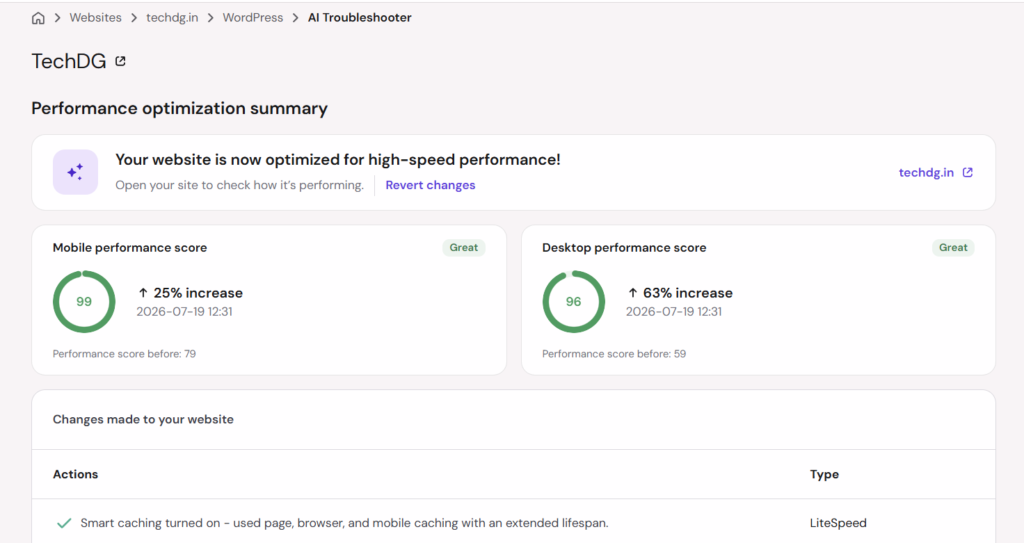
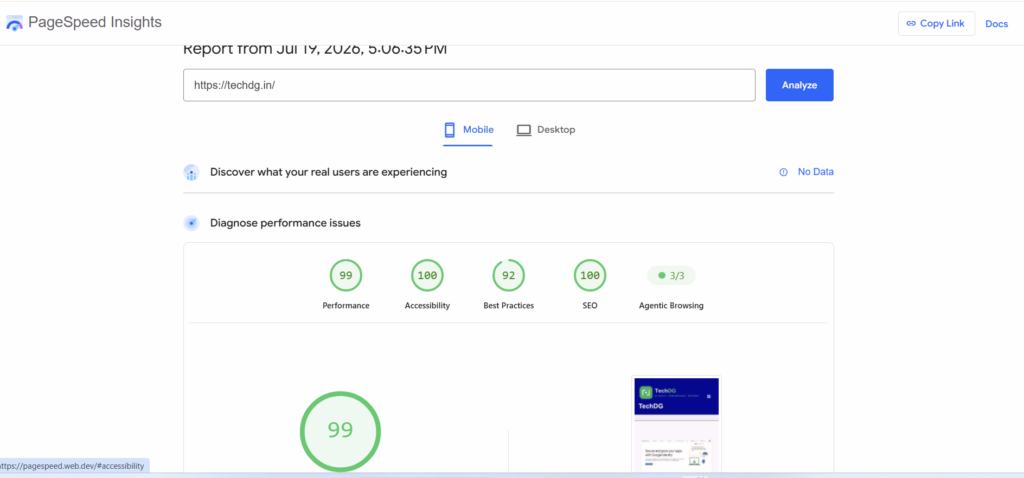
That is not a marginal improvement. That is the difference between a site that visitors might abandon on a slow mobile connection, and one that loads almost instantly. A follow-up check on Google PageSpeed Insights confirmed the improvement, showing a Performance score of 99, Accessibility at 100, SEO at 100, and Best Practices at 92.
So what exactly changed under the hood? Here is the full list of actions the tool applied automatically:
1. Smart Caching Turned On
The tool enabled page, browser, and mobile caching, all with an extended lifespan. In plain terms: once a page is built once, it is saved and served instantly to the next visitor instead of being rebuilt from scratch every time. This alone typically accounts for a large chunk of the speed improvement, especially for visitors on mobile networks.
2. Optimized Code Delivery
CSS, JavaScript, and HTML files were minified, which means unnecessary spaces, line breaks, and characters were stripped out of the code without changing how it functions. On top of that, JavaScript loading was delayed so that it does not block the page from rendering. This is the fix for that “render-blocking resources” warning that shows up in almost every speed test for untouched WordPress sites.
3. Image and Font Tweaks
Images were automatically optimized, guest mode was turned on, and font loading was improved. Fonts are an often-overlooked speed drain — if your theme loads three or four font weights from an external source, that is several extra requests your browser has to make before text even appears on screen.
4. External Content Acceleration
DNS prefetching and Gravatar caching were applied. DNS prefetching essentially tells the browser, “hey, you are going to need to look up this domain soon, so do it in advance instead of waiting until the last second.” Small optimization, but it adds up across a page with multiple external resources.
5. Cleaned Up Frontend Code
Unnecessary query strings, WordPress’s built-in emoji script, and other unused tags were removed. Most site owners do not even know their site is loading an emoji-detection script on every single page load — a leftover from WordPress’s default behavior. Removing this kind of dead weight has almost no downside and a small but real upside.
6. Database Optimization
The site’s database was cleaned and optimized to speed up queries. Over months or years, a WordPress database accumulates old post revisions, expired transients, and other clutter. Optimizing it is similar to defragmenting a hard drive — the information is still all there, just organized more efficiently.
How to Do This on Your Own Site
If your hosting provider offers a similar AI-powered performance tool, here is the general process you can expect:
Step 1: Locate the tool in your hosting dashboard. Look for something labeled “Performance,” “Speed Optimization,” or “AI Troubleshooter” under your website’s management section. If you are not sure whether your host offers this, check their support documentation or reach out to their live chat — many hosts are rolling these features out gradually.
If your current host does not offer anything like this, it might be worth comparing plans. Hostinger includes its AI Troubleshooter and LiteSpeed caching on its hosting plans by default, which is where the results in this article came from. See Hostinger’s current hosting plans →
Step 2: Run an initial scan. The tool will typically analyze your live site the same way a tool like Google PageSpeed Insights does, checking both mobile and desktop performance.
Step 3: Review the suggested changes. Most tools will show you a summary of what they plan to do — caching, minification, image optimization, and so on — before applying anything.
Step 4: Apply the optimization. This is usually a single click. The tool then applies all the changes in the background. On the example site above, this process took just a few minutes.
Step 5: Check your site manually. This step matters more than people think. Automated optimization is generally safe, but aggressive minification or caching can occasionally cause small visual glitches, especially on sites with custom themes or older plugins. After running the optimization, click through your site: check that your menu works, your images display correctly, contact forms submit properly, and any interactive elements still function.
Step 6: Re-run a speed test to confirm the improvement. Tools like Google PageSpeed Insights or GTmetrix are free and give you an independent, second opinion on your new score.
Step 7: Keep an eye out for false positives. Occasionally, after big changes to caching or security settings, you might briefly see a bot-verification screen (“I’m not a robot” checks) pop up when loading your site. This is usually just the hosting provider’s security system reacting to the fresh configuration and is not something to worry about — it typically settles down after normal traffic resumes. If it persists or appears for real visitors repeatedly, that is worth flagging with your host’s support team, since it could affect your bounce rate.
What This Means If You Run a Blog, Store, or Small Business Site
Site speed is not just a vanity metric. It has real consequences:
- Search rankings. Google has used page experience and Core Web Vitals as ranking factors for years. A faster site has a genuine, if modest, SEO advantage over a slower competitor covering the same topic.
- Bounce rate. Studies on user behavior consistently show that visitors abandon slow-loading pages within seconds, especially on mobile. Every second of load time you shave off keeps more visitors on the page long enough to actually read your content.
- Conversions. If you run an online store or collect leads through a contact form, speed directly affects your conversion rate. A faster checkout process or contact form submission means fewer people give up halfway through.
- AI answer engines. As more traffic starts coming from AI chatbots and answer engines that crawl and cite websites, a technically healthy, fast-loading site is more likely to be crawled efficiently and cited accurately.
A Few Honest Caveats
No optimization tool is magic, and it is worth setting realistic expectations:
- If your site is slow because of an enormous, unoptimized video background or a theme built with an unusually heavy page builder, caching and minification alone will only get you so far. Sometimes the underlying design itself needs to be lighter.
- Automated tools work at the surface level — caching, minification, image compression, database cleanup. They generally will not fix deeper issues like a poorly coded custom plugin or a server that is simply undersized for your traffic.
- Always keep a backup before running any large-scale automated change, even one described as safe. Most quality tools include a “revert changes” option, which is worth checking for before you apply anything, just in case you need to roll back.
Final Thoughts
The gap between a 59 and a 96 desktop performance score is not something most site owners could close on their own without spending real time learning caching plugins, image compression settings, and database maintenance. That used to be the barrier between “technical” website owners and everyone else.
AI-powered troubleshooting tools are quietly closing that gap. You do not need to know what minification means to benefit from it. You do not need to understand DNS prefetching to have it working in your favor. All you need to do is find the tool in your hosting dashboard, click a button, and then do the one thing a computer cannot fully do for you yet: click through your own site and make sure everything still looks and works the way you expect.
If your site has been feeling sluggish and you have been putting off a proper speed audit because it sounds technical and time-consuming, this is about as close to a shortcut as you will find — and unlike most shortcuts, this one is measurable, free with many hosting plans, and reversible if anything goes wrong.
Ready to Speed Up Your Own Site?
If you are on a host that does not offer built-in AI performance tools, or you are simply tired of dealing with speed issues manually, switching to a host that handles this automatically can save you hours of trial and error. Hostinger includes the AI Troubleshooter and LiteSpeed caching shown in this article on its hosting plans.
👉 Check Hostinger’s plans and pricing here
Disclosure: This is an affiliate link, which means we may earn a small commission if you sign up, at no extra cost to you. We only recommend tools and services we actually use ourselves. Full details on our Affiliate Disclosure page.
FAQ
Q: Will an AI speed optimization tool break my WordPress site?
It is unlikely, but not impossible. Aggressive caching or minification can occasionally cause minor display issues on sites with custom themes or outdated plugins. Always check your site manually after running an optimization, and use the “revert changes” option if something looks off.
Q: How much can I expect my speed score to improve?
It varies by site, but improvements of 20 to 60 percent are common for sites that have never been optimized before. Sites that already use a caching plugin will typically see smaller gains.
Q: Do I need any technical knowledge to use these tools?
No. Most AI-powered troubleshooting tools are designed to run with a single click, with no configuration required from the user.
Q: Is a fast website actually important for SEO?
Yes. Google’s Core Web Vitals are a confirmed ranking factor, and faster sites also tend to have lower bounce rates, which indirectly supports better search performance.