If you’ve been using Kimi, Moonshot AI’s fast-rising AI assistant, purely as a chatbot, you’re leaving most of its value on the table. The real upgrade happens inside the Plugins tab, where Kimi connects to the apps you already use — Notion, reporting tools, finance data providers, and more — turning a conversation window into an actual workspace.
In this guide, I’ll walk through what Kimi Plugins are, how the Productivity & Office category works, the standout plugins available right now, and how to install them in under a minute. I’ll also show you how to grab guaranteed sign-up credits if you’re setting up a Kimi account for the first time.
What Are Kimi Plugins, Exactly?
Kimi Plugins are external tool connectors that let the assistant reach beyond its own chat window and interact with real apps and services. Instead of you copy-pasting data back and forth between Kimi and, say, Notion, a plugin lets Kimi read, write, and update that app directly, based on your prompt.
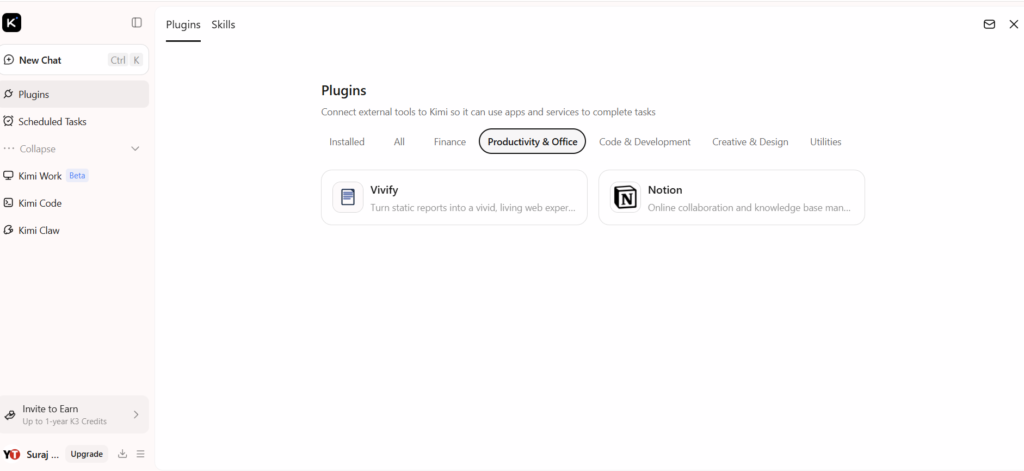
Inside the app, plugins are organized into six categories:
- Installed – plugins you’ve already added
- All – the full catalog
- Finance – market data and financial reporting connectors
- Productivity & Office – the focus of this guide
- Code & Development – dev-focused integrations
- Creative & Design – content and design tools
- Utilities – general-purpose helpers
This modular setup mirrors what Anthropic and OpenAI have done with tool integrations, but Kimi’s plugin store feels more like an app marketplace — you browse, read a short description, and hit Install.
Why the Productivity & Office Category Matters
For solo creators, marketers, students, and small teams, the Productivity & Office category is arguably the most useful section in the entire plugin store. This is where Kimi stops being “just an AI that answers questions” and becomes something that actually touches your documents, notes, and workflows.
Two plugins currently anchor this category and are worth knowing well: Vivify and Notion.
1. Vivify — Turn Static Reports Into Living Web Pages
Vivify’s pitch is simple: it takes static reports — the kind of dry, wall-of-text documents most of us produce for work — and turns them into a “vivid, living web experience.” Instead of exporting a PDF that nobody reads past page one, you get an interactive, visually engaging web version that’s actually easier to skim and share.
This is a genuinely useful plugin if your job involves regularly producing reports, whether that’s a weekly analytics summary, a client deliverable, or an internal update. Rather than manually formatting things in Canva or Google Slides, you describe what you want and let Kimi handle the presentation layer.
Best for: freelancers, consultants, marketers, and anyone who sends recurring reports to clients or stakeholders and wants them to look less like a Word doc dump.
2. Notion — Full Workspace Integration
The Notion plugin is the more heavyweight of the two, and it’s the one most people will reach for first. Once connected, Kimi can:
- Search across your Notion workspace
- Read existing pages and databases
- Create new pages
- Update content in place
- Move pages between locations
- Leave collaborative comments
In practice, this means you can ask Kimi to pull up a project brief, summarize it, draft a follow-up page, and file it in the right database — all without opening Notion yourself. If your team already runs its documentation, wikis, or project tracking through Notion, this plugin effectively turns Kimi into a workspace assistant that lives inside a tool you’re already using daily.
Best for: teams and individuals who use Notion as their central knowledge base and want an AI layer on top of it instead of a separate, disconnected chatbot.
How to Install a Kimi Plugin (Step-by-Step)
Installing a plugin takes about three clicks:
- Open the Kimi sidebar and click Plugins.
- Choose a category tab — for this guide, click Productivity & Office.
- Click on a plugin card (e.g., Vivify or Notion) to open its detail page.
- Review the plugin’s description and the “Skill” or “App” it powers.
- Click Install in the top-right corner.
That’s it — no API keys to configure manually for most of these, no separate developer console. Once installed, the plugin shows up under the Installed tab, and you can invoke it directly by mentioning the relevant task in your next Kimi chat (e.g., “pull my latest Notion project brief and summarize it”).
Kimi Plugins vs. Other AI Assistants’ Integrations
If you’ve used ChatGPT’s GPTs/connectors or Claude’s MCP-based integrations, the concept will feel familiar, but there are a few differences worth flagging:
| Feature | Kimi Plugins | Typical Competitor Setup |
|---|---|---|
| Discovery | Built-in categorized marketplace | Often scattered across settings menus |
| Setup friction | One-click install | Sometimes requires manual API/token setup |
| Categorization | Clear use-case tabs (Finance, Productivity, Code, etc.) | Usually a flat list |
| Cost to browse | Free to browse and install | Often gated behind higher tiers |
The categorized, browsable format is genuinely one of Kimi’s better UX decisions — it makes it easy for non-technical users to find something relevant without needing to know what “MCP” or “function calling” even means.
Who Should Actually Use These Plugins?
Not everyone needs to install every plugin. A quick gut-check:
- You run reports for clients or leadership → Vivify is worth testing immediately.
- Your team’s documentation lives in Notion → the Notion plugin should be one of your first installs.
- You’re a solo creator or blogger (managing content calendars, drafts, or SEO notes in Notion) → the Notion plugin can genuinely replace a chunk of manual copy-pasting between your AI assistant and your workspace.
- You mostly use Kimi for quick Q&A → you may not need plugins yet, but it’s worth browsing the store since new productivity connectors are being added regularly.
Where Plugins Fit in the Bigger Kimi Ecosystem
It’s worth zooming out for a second. Plugins are the lightest-weight layer of what Moonshot AI is building. In the same sidebar where you find Plugins, you’ll also see Kimi Work, Kimi Code, and Kimi Claw — each aimed at a different depth of task:
- Plugins connect the standard chat experience to specific apps like Notion, ideal for quick, targeted tasks inside a conversation.
- Kimi Code is the developer-focused coding agent, meant for people writing or maintaining software.
- Kimi Work and Kimi Claw push further into full agentic execution — running multi-step jobs, sometimes across dozens of coordinated sub-agents, for research, reporting, or long-running workflows.
For most office and productivity use cases, though, plugins are the right entry point. They’re low-friction, don’t require any technical setup, and solve the everyday problem of switching between your AI assistant and the actual tools you work in. If you later find yourself needing something heavier — say, a fully autonomous report-building workflow — that’s when it’s worth exploring Kimi Work or Kimi Code specifically.
Get Started With Kimi (and Grab Some Free Credits)
If you don’t have a Kimi account yet, now’s a reasonable time to set one up, especially with the Productivity & Office plugin category maturing. As a bonus, Kimi runs a referral program where both sides benefit when you sign up through an invite:
Sign up on Kimi and we each get a guaranteed benefit — up to 1-Year Membership Credits: 👉 Join Kimi here
It costs nothing to sign up, and it’s a straightforward way to get extra credits toward Kimi’s paid features while you explore the plugin ecosystem.
Frequently Asked Questions
Are Kimi plugins free to install? Installing a plugin from the store is free. Some plugins may connect to services that have their own separate costs (for example, premium Notion or financial data subscriptions), but the plugin connector itself doesn’t add a fee on top.
Do I need coding knowledge to use Kimi plugins? No. Installation is a one-click action from the plugin’s detail page, and usage happens through normal chat prompts — no API keys or code required for the plugins covered in this guide.
Can I use multiple plugins at once? Yes. Once installed, plugins appear under the “Installed” tab, and Kimi can draw on more than one during a single conversation if your prompt calls for it (for example, pulling data from Notion and formatting it with Vivify).
Is the Notion plugin safe to connect to my workspace? As with any third-party integration, it’s worth reviewing what permissions the connector requests before granting access, and limiting it to workspaces where you’re comfortable with an AI assistant reading and editing content.
How is this different from using Kimi Work or Kimi Code? Plugins extend the core Kimi chat experience with specific app integrations. Kimi Work and Kimi Code are separate, more advanced products built for broader agentic and coding workflows — plugins are the lighter-weight, faster way to connect Kimi to a single tool like Notion.
Have you tried any Kimi plugins for your own workflow? I’ll be updating this guide as more Productivity & Office connectors roll out.