Table of Contents
How to Automate Your Job with AI Tools (Without Coding)
It is 4:30 PM on a Thursday. You are staring at a spreadsheet, copying data from a client intake form and pasting it into your project management software. You have done this exact same task every day for the last six months. You know a machine could do it in three seconds, but you are doing it manually because setting up an automation feels like it requires a computer science degree.
Sound familiar?
You are not alone. Most professionals spend up to 40% of their workweek on internal processes, administrative tasks, and repetitive data entry. We are drowning in shallow work, leaving us with zero energy for the deep, strategic thinking we were actually hired to do.
The good news? The barrier to entry for workflow automation has completely collapsed. You no longer need to know Python, understand APIs, or hire a developer to build custom software. Today, you can automate your job with AI tools using nothing but a web browser and a logical mindset.
This guide will walk you through exactly how to identify your most time-consuming tasks, choose the right no-code AI tools, and build automated workflows that give you your time back. We will keep things practical, professional, and entirely free of technical jargon.
The Real Cost of Manual Work (And Why You Need to Automate Now)
Before we talk about tools, we need to talk about the actual cost of doing things the old-fashioned way.
When you rely on manual processes, you are not just losing time. You are introducing human error into your workflow. Every time you copy and paste a row of data, there is a statistical probability you will make a typo. Every time you manually draft a weekly status email, you risk forgetting a key metric.
More importantly, manual work kills your career trajectory. If your manager looks at your output and sees that 80% of your time is spent on data entry and scheduling, they will view you as a data entry clerk, regardless of your actual job title. If you want to be promoted, you need to show strategic value. You cannot do that if you are trapped in the weeds of administrative busywork.
The “AI Will Replace Me” Myth
A lot of hesitation around AI automation comes from a very real fear: If I automate my job, won’t they just fire me?
Here is the reality of the modern workplace. AI is not going to replace your job; a person using AI will.
When you automate the boring, repetitive parts of your job, you do not make yourself obsolete. You make yourself indispensable. You free up 15 to 20 hours a week. What do you do with that time? You use it to analyze the data you used to just copy and paste. You use it to build better relationships with clients. You use it to design new strategies.
By automating your baseline tasks, you shift your role from a “doer” to a “manager of systems.” That is a highly paid skill.
The Golden Rule of Automation: Map Before You Build
The biggest mistake people make when they discover no-code AI tools is trying to automate everything at once. They build a massive, complex workflow that breaks on day two, get frustrated, and go back to doing things manually.
Automation requires a strategic approach. You need to map your processes before you touch a single tool. Think of it like building a house. You do not start by buying hammers and nails; you start with a blueprint.
Step 1: The Task Audit
For one week, track everything you do. Do not just track the big projects; track the micro-tasks. Every time you switch tabs, write an email, update a database, or format a document, write it down.
At the end of the week, categorize these tasks into three buckets:
- High-Value / High-Cognitive: Strategy, creative problem solving, client negotiations. (Do not automate these. This is where you add unique human value).
- Low-Value / High-Cognitive: Reading through long documents to find specific clauses, analyzing complex data sets for basic trends. (Augment these with AI).
- Low-Value / Low-Cognitive: Data entry, formatting, scheduling, moving files from one folder to another. (Automate these immediately).
Step 2: The “If This, Then That” Framework
Once you have identified your “Low-Value / Low-Cognitive” tasks, break them down into triggers and actions. Almost every automation in the world follows this basic logic:
- Trigger: The event that starts the process (e.g., “A new email arrives with the subject line ‘Invoice'”).
- Action: What the system does next (e.g., “Save the attachment to a specific Dropbox folder and log the amount in a spreadsheet”).
If you can write your process down as a series of “If [Trigger] happens, then do [Action]” statements, you can automate it. If a process requires human judgment, nuance, or reading between the lines, leave it manual. AI is great at following rules, but it is still terrible at understanding context.
The No-Code AI Tool Stack: What You Actually Need
You do not need 50 different subscriptions. You just need a few core tools that talk to each other. Here is the professional stack for automating your job without writing a single line of code.
1. The Connectors: Zapier and Make
If AI is the brain, Zapier and Make are the nervous system. They connect your different apps together.
Let us say you use Gmail, Slack, and Trello. Normally, these three apps do not talk to each other. Zapier acts as the bridge. You can tell Zapier, “When I star an email in Gmail, create a card in Trello and send a Slack message to my team.”
- Zapier: Best for beginners. It has a massive library of pre-built integrations and a very intuitive interface. It is slightly more expensive but saves you a lot of setup time.
- Make (formerly Integromat): Best for complex workflows. It uses a visual, drag-and-drop canvas that looks like a flowchart. It is cheaper than Zapier and handles complex logic (like “if/then/else” branching) much better, but it has a slightly steeper learning curve.
2. The Thinkers: ChatGPT and Claude
These are your Large Language Models (LLMs). You already know they can write emails, but in a professional automation context, they are used for data extraction, summarization, and formatting.
Instead of using them just for chat, you use their API integrations (which Zapier and Make support natively) to process text. For example, you can set up a workflow where a customer fills out a feedback form, the text is sent to ChatGPT to extract the “sentiment score” and “key complaints,” and then that structured data is saved into your CRM.
3. The Organizers: Notion AI and Microsoft Copilot
If you want to keep your automation inside the tools you already use, look at the native AI features in your workspace.
- Notion AI: Incredible for managing documentation, meeting notes, and project wikis. You can highlight a messy brain-dump of meeting notes and ask Notion AI to format it into a structured project brief with action items and deadlines.
- Microsoft Copilot: If your company lives in the Microsoft 365 ecosystem, Copilot is a game-changer. It can pull data from your emails, Teams chats, and OneDrive to draft documents, summarize long Excel sheets, and build PowerPoint presentations based on Word documents.
4. The Media Handlers: Descript and Otter.ai
If your job involves meetings, podcasts, or video content, you need to automate the transcription and editing process.
- Otter.ai: Automatically joins your Zoom or Teams meetings, transcribes the audio in real-time, and generates a summary with action items.
- Descript: Treats audio and video editing like a Word document. If you want to remove a “um” or a paused sentence from a video recording, you just highlight the text in the transcript and hit delete. The video automatically cuts to match.
Department-Specific Automation Playbooks
To give you a better idea of how this looks in practice, here are a few ways different professionals are using no-code AI to automate their daily workflows.
For Sales and Account Management
The Problem: Spending hours researching prospects before a call and manually logging call notes in the CRM afterward.
The Automation:
- Use a tool like Clay or Apollo to automatically scrape a prospect’s LinkedIn profile and recent company news.
- Feed that data into ChatGPT via Zapier with a prompt to “Generate 3 personalized icebreakers and 2 strategic questions based on this data.”
- The AI sends the personalized brief directly to your Slack or email 15 minutes before the call.
- After the call, Otter.ai transcribes the meeting, and Zapier automatically pushes the summary and action items into Salesforce or HubSpot.
For Marketing and Content
The Problem: Repurposing a single piece of long-form content (like a webinar or whitepaper) into social media posts, newsletters, and blog snippets takes days.
The Automation:
- Upload the webinar transcript to a document in Notion.
- Use Notion AI (or a Zapier workflow connected to Claude) to automatically generate five LinkedIn posts, three Twitter threads, and a draft for the weekly email newsletter.
- Set a trigger so that every time a new post is approved in your social media scheduler (like Buffer or Hootsuite), it automatically logs the publishing date in your master content calendar.
For Human Resources and Recruiting
The Problem: Screening hundreds of resumes for basic qualifications and scheduling interviews involves endless email back-and-forth.
The Automation:
- When a candidate applies via your ATS (Applicant Tracking System), Zapier triggers.
- The resume PDF is sent to an AI document parser (like DocParser or an LLM with vision capabilities) to extract key data: years of experience, specific software skills, and education.
- The AI compares this extracted data against your “must-have” criteria.
- If they pass, an automated email is sent via Calendly with a link to book an interview. If they fail, a polite, AI-drafted rejection email is queued up.
Step-by-Step: Building Your First No-Code AI Automation
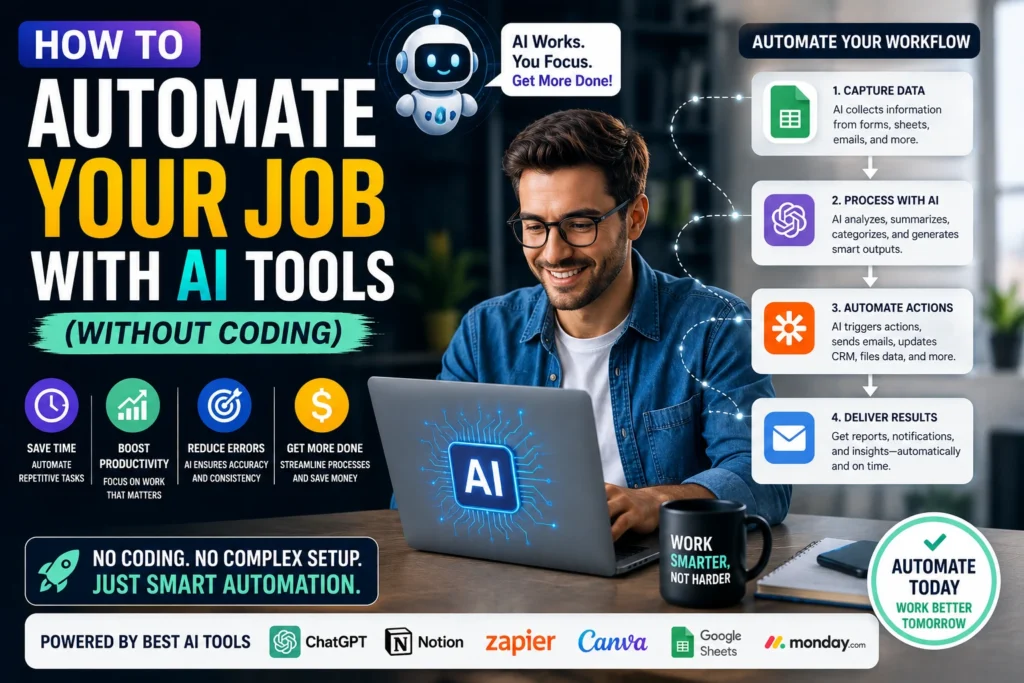
Let us build a real automation together. We are going to automate a task that almost every professional hates: The Weekly Status Report.
Currently, you probably spend 45 minutes every Friday looking at your project management board, checking your email, and writing a summary of what you accomplished for your boss. Let us automate it.
Step 1: Set Up the Trigger
Open Zapier and create a new “Zap” (their term for an automated workflow).
Set the trigger app to your project management tool (e.g., Asana, Trello, or Monday.com).
Choose the trigger event: “Task Moved to Column.”
Set the specific column to “Done” or “Completed.”
Now, every time you finish a task, the automation wakes up.
Step 2: Add the AI Processing Step
Add a new action step in Zapier and select “ChatGPT” (or Claude).
Choose the action: “Send Prompt.”
In the prompt box, you will write your instructions to the AI. You need to pass the data from the trigger into the prompt. It will look something like this:
“You are an executive assistant. I just completed a task.
Task Name: [Insert Task Name from Trigger]
Task Description: [Insert Description from Trigger]
Time spent: [Insert Time from Trigger]Please write a brief, professional, one-sentence update for my weekly status report. Focus on the business impact of the task. Keep the tone professional and concise.”
Step 3: Store the Output
Add another action step. Select Google Docs or Notion.
Choose the action: “Create New Document” or “Append Text to Page.”
Map the output from the ChatGPT step into the body of the document.
Now, every time you finish a task, a perfectly written status update is automatically added to your master Friday report document.
Step 4: The Final Distribution
Add one last step. Select Gmail or Slack.
Set a schedule trigger for Friday at 4:00 PM.
Tell the system to read the Google Doc you have been appending to all week, format it nicely, and email it to your manager.
You just turned a 45-minute Friday chore into a zero-minute automated process. The best part? You built it using drop-down menus. No code required.
How to Prompt AI for Business Tasks (A Quick Crash Course)
When you are using AI tools in your automations, the quality of the output depends entirely on the quality of your prompt. AI is incredibly literal. If you give it a vague instruction, it will give you a vague, generic, and useless output.
To get professional results, use the CTFT Framework for every prompt you write.
- Context: Who is the AI, and what is the background situation?
- Example: “You are a senior financial analyst reviewing Q3 expense reports for a mid-sized tech company.”
- Task: What exactly do you want it to do? Use strong action verbs.
- Example: “Identify the top three categories where spending exceeded the budget by more than 10%.”
- Format: How do you want the output to look? Be specific about structure.
- Example: “Output the response as a Markdown table with three columns: Category, Budgeted Amount, Actual Amount, and Variance Percentage.”
- Tone: How should it sound?
- Example: “Use a formal, objective, and concise tone. Do not use filler words or conversational pleasantries.”
The Power of “Few-Shot” Prompting
If you want the AI to mimic a specific style, do not just tell it to do so; show it. This is called “few-shot prompting.”
If you want the AI to write client emails in your exact voice, provide three examples of past emails you have written in the prompt before asking it to write the new one.
“Here are three examples of how I write to clients:
[Paste Email 1]
[Paste Email 2]
[Paste Email 3]Now, using this exact tone, sentence length, and style, write a reply to a client who is asking for a project extension.”
The AI will analyze the patterns in your examples and replicate them with scary accuracy.
Navigating Security and Privacy in AI Automation
Here is the part most basic AI tutorials skip: security. When you automate your job, you are feeding proprietary company data, client information, and internal strategies into third-party AI models. If you do this blindly, you could cause a massive data breach.
Before you build any automation, you need to understand the data privacy rules of the tools you are using.
The “Public vs. Private” AI Rule
Most standard, free-tier AI chatbots (like the basic version of ChatGPT) are trained on the data you input. If you paste a confidential client list into the free web interface, that data is technically in their training ecosystem.
Never put confidential company data into a free, public AI interface.
Instead, use the enterprise or business tiers of these tools.
- ChatGPT Team / Enterprise: Guarantees that your data is not used to train their base models. It offers SOC 2 compliance and single sign-on (SSO).
- Microsoft Copilot for Microsoft 365: Processes data entirely within your company’s secure Microsoft tenant. It does not send data to the public internet.
Implementing the “Human in the Loop”
When you are just starting out with AI automation, never set a workflow to “fire and forget.” Always implement a human-in-the-loop (HITL) checkpoint.
If your AI is drafting emails to clients, do not let Zapier send them automatically. Have Zapier save the draft in Gmail, and send you a Slack notification saying, “Draft ready for review.” You spend three seconds reading it, tweaking it if necessary, and hitting send.
As you build trust in the system over a few months, you can slowly remove the human checkpoints for low-risk tasks. But for high-risk tasks (like financial approvals or external communications), the human checkpoint should remain permanent.
Common Mistakes People Make with AI Automation
Even with the best intentions, people trip up when they start building workflows. Avoid these common pitfalls to save yourself hours of frustration.
1. Automating a Broken Process
If your manual process is inefficient, confusing, or broken, automating it will just give you a faster, more efficient broken process. AI amplifies your existing workflow. Before you automate, simplify. Cut out unnecessary steps, get rid of redundant approvals, and streamline the logic. Then, automate the clean version.
2. Ignoring Error Handling
What happens if the AI fails? What if the API connection drops? What if the AI hallucinates and outputs gibberish?
Beginners build “happy path” automations that only work when everything goes perfectly. Professionals build error handling. In Zapier or Make, set up “Paths” or “Routers” that catch errors. If an AI step fails, route the task to a fallback action—like sending an alert to your phone so you can fix it manually.
3. Over-Automating Human Touchpoints
Just because you can automate something does not mean you should. If a client calls in with a highly specific, emotional complaint, an automated AI response will only make them angrier. Use AI to handle the backend logistics, but keep the frontend human. Use automation to free up your time so you can actually get on the phone and talk to them.
4. Failing to Maintain the System
Automations are not set-and-forget. Apps update their interfaces, APIs change, and your business processes evolve. An automation you build in January might break in June because the software you use added a new feature. Schedule a 30-minute “system maintenance” block on your calendar once a month to check your workflows, update prompts, and ensure everything is running smoothly.
The Future of Work: Becoming the “AI Manager”
We are undergoing a massive shift in how value is created in the workplace. For the last century, employees were paid for their output: how many words they typed, how many spreadsheets they filled, how many calls they made.
In the age of AI, output is practically free. An AI can generate ten thousand words or fill a hundred spreadsheets in seconds. Therefore, the value of raw output is dropping to zero.
So, what becomes valuable?
Judgment, strategy, and system design.
The professionals who will thrive in the next decade are not the ones who work the hardest or the fastest. They are the ones who can look at a complex business problem, design an automated system to solve it, and manage the AI agents that execute the work.
You are transitioning from being an individual contributor to being a manager of digital workers. Your AI tools are your junior staff. They are incredibly fast, they never sleep, and they never complain. But they lack common sense, they do not understand office politics, and they need clear, precise instructions.
Your job is no longer to do the work. Your job is to direct the work, verify the quality, and ensure the final output aligns with the strategic goals of the business.
Wrapping Things Up: Your First Step Starts Today
Automating your job with AI tools without coding is not a futuristic concept. It is a practical, accessible reality that you can implement this afternoon.
You do not need to overhaul your entire career overnight. Start small. Pick one annoying, repetitive task that steals 30 minutes of your day every single week. Map it out. Find the trigger. Find the action. Build a simple Zapier workflow or set up a custom prompt in your workspace AI.
Once you see that first automation run successfully, once you watch the computer do the boring work while you sip your coffee, something will click. You will realize that you have been working harder, not smarter, for years.
Take back your time. Eliminate the busywork. Build the systems. The tools are sitting right there waiting for you to use them. All you have to do is log in and start building.